Blog published in Buying property abroad
Share
Homestra login guide: how to sign in and create your account
Learn how to sign in to Homestra, create an account, reset your password, and unlock saved searches, favourites, and alerts for expat home searching in Europe.

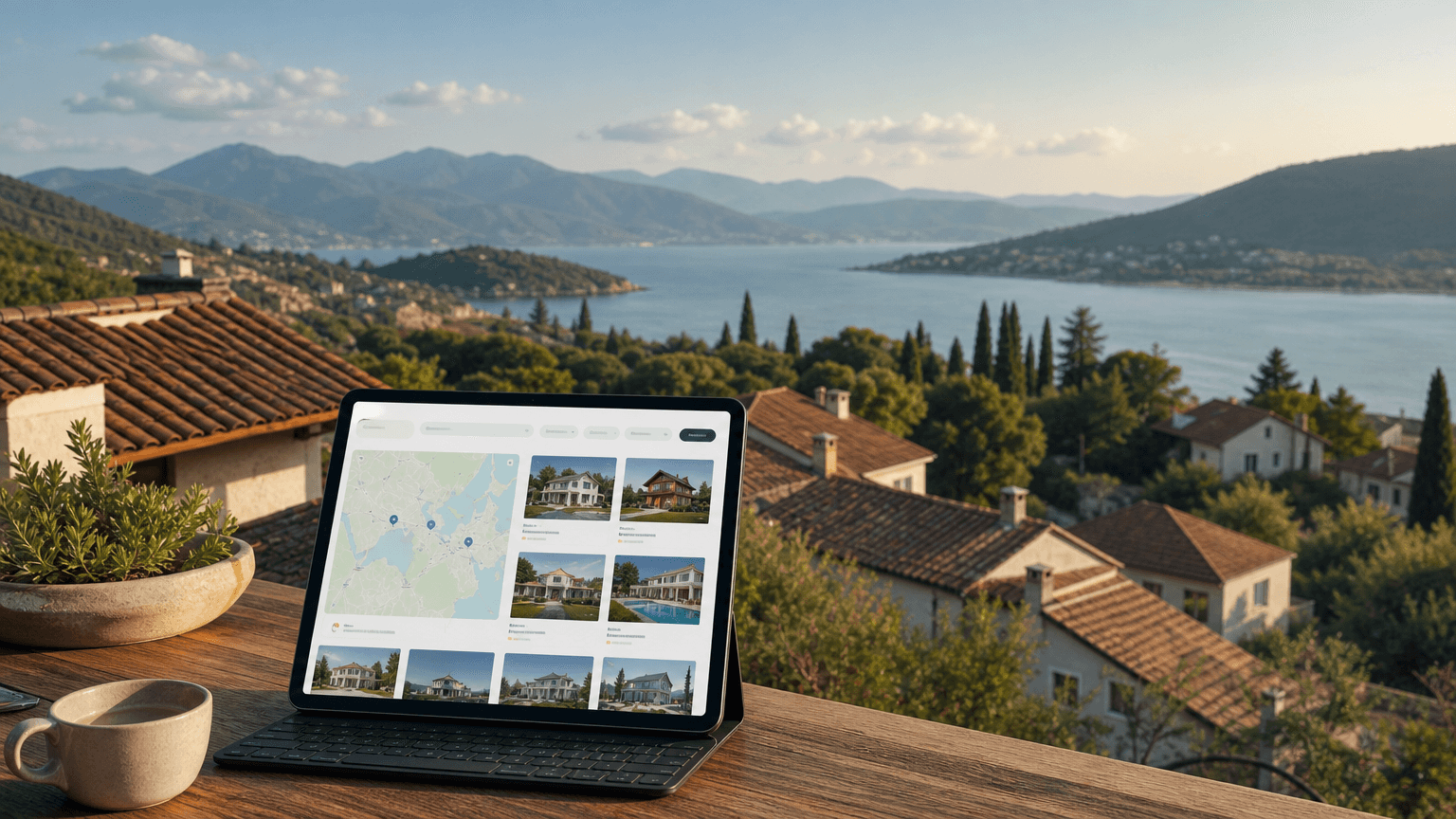
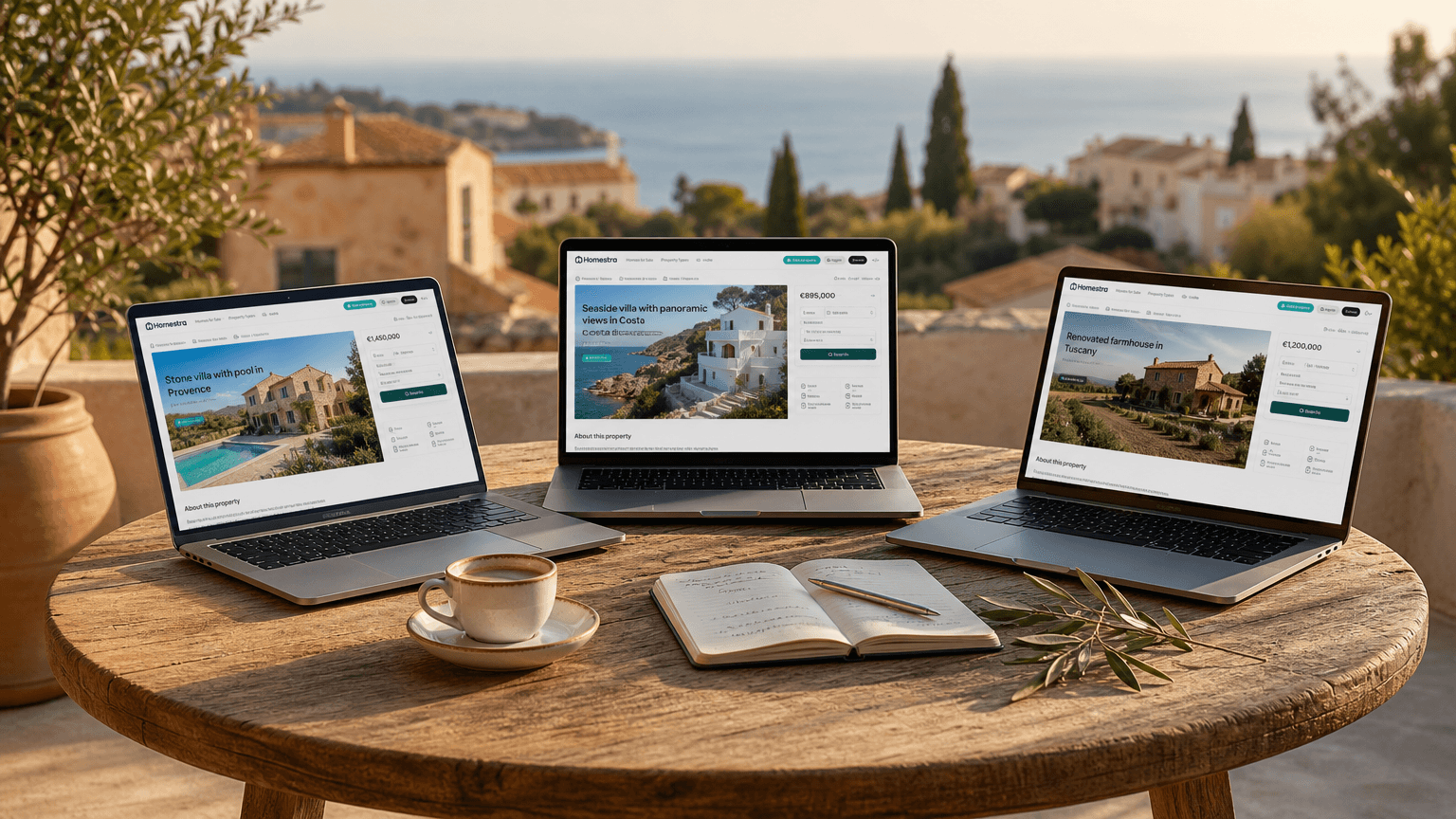
Good news before we start: you don't need an account to search Homestra's 200,000+ European properties. The homepage search module (country, property type, min/max price) is open to everyone. Signing in comes into play when you want to save what you find, set up alerts, or pick back up where you left off.
This guide walks you through the full Homestra login process, from finding the sign-in button to resetting a forgotten password.
Who this is for: Expats and international buyers searching for second homes, vacation properties, or permanent residences across Europe.
Time needed: Under 5 minutes.
Where to find the sign-in button
Visit homestra.com in your browser. Look for the Sign in button in the top-right corner of the page header. It appears on both desktop and mobile.
On mobile, the header collapses into a menu icon. Tap it, and the sign-in option appears at the top of the expanded menu.
You can go directly to the login page at:
https://homestra.com/login
Note: The exact sign-in URL may vary. If the link above doesn't load a login screen, use the header button on the homepage instead.
How to create a Homestra account
- Click Sign in in the header.
- On the login screen, select Create account (typically shown as a link below the login form).
- Enter your details: name, email address, and a password.
- Check your inbox for a verification email from Homestra and click the confirmation link.
- Return to homestra.com and sign in with your new credentials.
Once signed in, you land back on the homepage or wherever you left off in your search.
Tips for international users: Use an email address you check regularly, since property alerts and saved search notifications will be sent there. If you don't receive the verification email within a few minutes, check your spam or junk folder.
Resetting a forgotten password
- Go to the login screen.
- Click Forgot password? (shown below the password field).
- Enter the email address tied to your account and submit the form.
- Open your inbox, find the reset email from Homestra, and click the link inside.
- Enter and confirm a new password.
If the reset email doesn't arrive within 5 minutes, check spam. If you're still stuck, you may be using a different email address than the one registered. Try any other addresses you commonly use before contacting support.
What signing in actually unlocks
Browsing and searching Homestra's country homes across Europe is completely free and requires no account. Signing in adds three useful features:
- Favourites. Save individual listings so you can compare them later without hunting them down again.
- Saved searches. Store your exact filter combination (country, property type, price range) so you can rerun it with one click.
- Alerts. Receive email notifications when new properties matching your saved criteria appear on the platform.
These features are accessible from your account dashboard after login, and saved searches can also be created directly from a search results page by clicking the save prompt.
For expats researching a purchase across multiple countries, these tools save a lot of repeat work. If you're still in the early research phase, the blog's guide on what to consider before buying property abroad is a practical companion read alongside your property searching.
Still need help?
If you run into trouble signing in or can't access your account, reach out to the Homestra support team via the contact form on homestra.com. When you get in touch, include the email address you registered with to speed up the process.
For background on the platform's privacy practices and terms of use, links to both documents are available in the footer of every Homestra page.
Share