Blog published in Buying property abroad
Share
How to Search Spain, France, and Italy for Homes at Once
Set up one filter recipe to search Spain, France, and Italy simultaneously on Homestra. Save your searches, compare results, and find your ideal property faster.
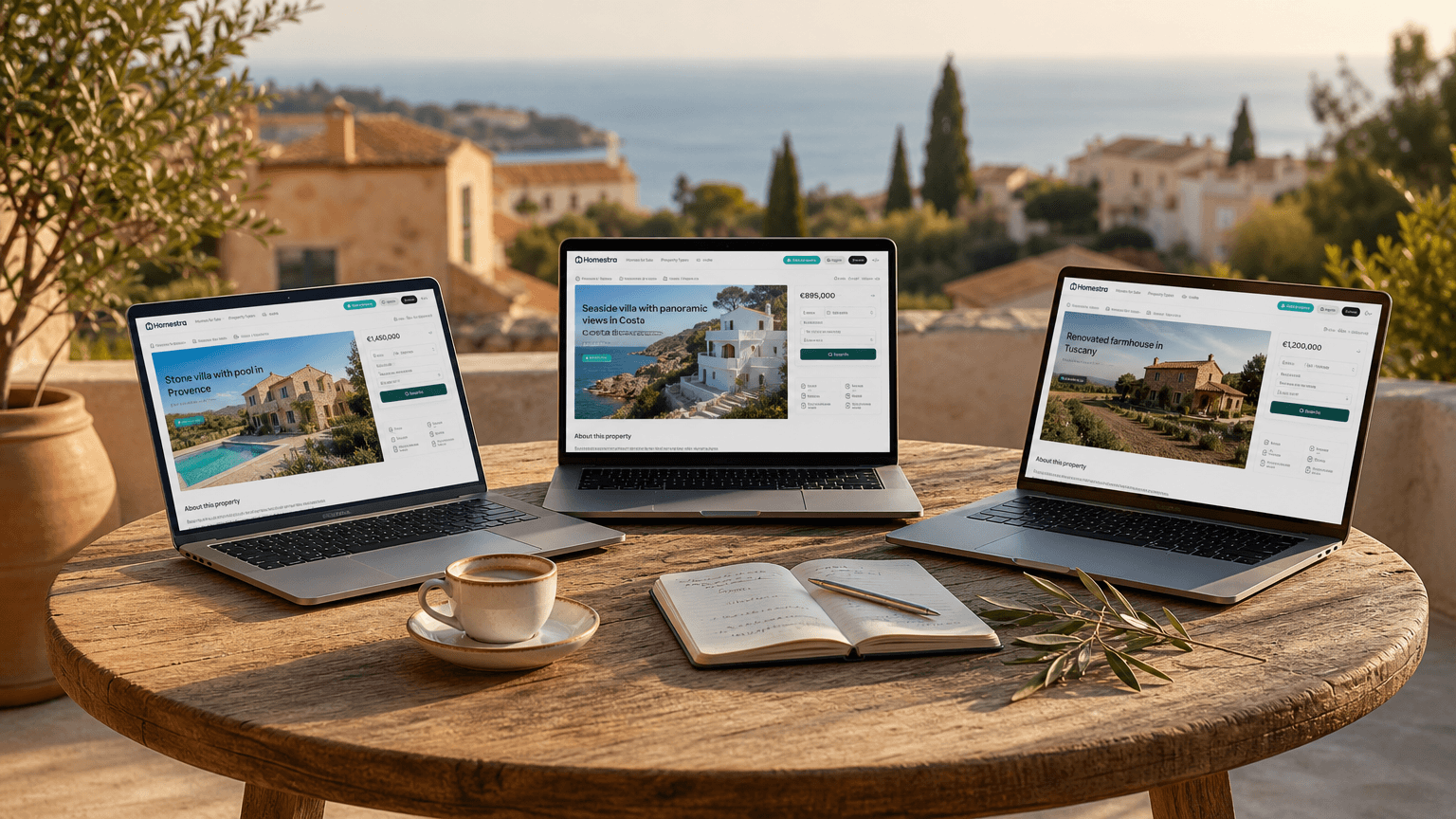
Searching three countries usually means three browser tabs, three sets of filters, and three different ways of describing the same villa. You can cut that down a lot on Homestra, which lists over 200,000 properties across Europe and uses the same filter logic for every country.
This guide shows you how to set up a Spain, France, and Italy search that you can run, compare, and repeat without rebuilding it each time.
What you'll set up and what you need first
End result: one repeatable set of criteria (price ceiling, property type, a couple of features) applied to Spain, France, and Italy, with each search saved as a link you can reopen.
Who it's for: international buyers and expats comparing second homes or retirement properties across more than one country.
You'll need:
- A browser and a few minutes of thinking about your budget
- A rough idea of property type (villa, country house, apartment) and one or two must-have features
- A notes app or spreadsheet for pasting links
Difficulty: beginner. Time: about 20 to 30 minutes for the first pass, then a few minutes per weekly check.
What "at the same time" means here
Two things get called "searching at the same time," and they're not the same.
- One results page that mixes listings from all three countries.
- One set of criteria reused across three country searches, so the results are directly comparable.
Homestra's country selection works through the page path. France, for example, lives at
https://homestra.com/list/houses-for-sale/france/
- Workflow A (site-wide): use the main listings page without a country in the path, apply your filters, and scan the countries in one results list. If the country selector on your screen lets you pick more than one country, use it.
- Workflow B (three searches, one recipe): run the identical filters on Spain, France, and Italy separately, then save all three.
Which one fits depends on what the filter panel shows you today. The steps below cover both, so you won't get stuck if your screen differs from what's described.
Step-by-step: run your first multi-country search
1. Start from the site-wide listings page
Go to
https://homestra.com
To skip the homepage, open the site-wide route directly:
https://homestra.com/list/houses-for-sale/
Because there's no country in that path, you're looking at listings across Europe, not a single country.
Checkpoint: the page shows a results count and listing cards. If the address ends in a country name (like
/france/
2. Set your price range first
Enter a max price (and a min price if you want to screen out very cheap fixer-uppers or land plots). Use the number as it appears in Homestra's currency display, and keep the same figure for every country you compare.
On the site, the max price shows up in the address like this:
https://homestra.com/list/houses-for-sale/?maximum-price=500000
Checkpoint: the results count should drop noticeably compared to the unfiltered page. If it doesn't change, the filter didn't apply. Click Search again.
3. Pick one property type
Open the property type filter and choose the closest match to what you want. Pick one at first. You can widen it later.
Here's a warning that saves time: don't rely on the word "villa." Different markets use different words, and the filter only recognizes the options Homestra defines. Choose from the dropdown, then look at your address bar to see the exact value it added (it will look like
property-type=...
4. Add one or two features, not five
Features are where searches quietly go wrong. Add the one that's truly non-negotiable, like a pool, and stop there for the first pass. A Spain link on Homestra uses
features=swimming-pool
Every extra feature shrinks the pool of listings, and agents don't always tag features consistently. A home with a pool might not carry the tag. Start loose, then tighten.
Checkpoint: your address now contains price, property type, and feature parameters. Copy it into your notes. This is your master recipe.
5. Choose Workflow A or Workflow B
Now decide how to get all three countries in front of you.
If the country selector lets you choose more than one country: select Spain, France, and Italy, then click Search. Confirm the results page shows listings from all three. You're done with this step.
If it only lets you pick one country at a time, or you want to keep results cleanly separated: run your recipe through each country route:
https://homestra.com/list/houses-for-sale/spain/?maximum-price=500000
https://homestra.com/list/houses-for-sale/france/?maximum-price=500000
https://homestra.com/list/houses-for-sale/italy/?maximum-price=500000
France is confirmed as a country route on Homestra. Spain and Italy follow the same pattern, but open each one and check that it loads before you trust it. If a path doesn't work, use the country selector on the page and copy the address it gives you.
Then add your property type and feature parameters to the end of each URL. Join parameters with
&
?
https://homestra.com/list/houses-for-sale/spain/?maximum-price=500000&features=swimming-pool
Checkpoint: each of the three tabs shows a different country, a similar-looking filter state, and its own results count. Write the three counts in your notes. That quick comparison already tells you something. A count of 400 in one country and 12 in another means that market has more of what you want, or that the filter value isn't matching how listings are tagged there.
Filters that compare fairly across borders
Not every filter travels equally well between countries. Here's how to think about each.
Price is the safest. A ceiling of 500,000 means the same thing in Madrid, Provence, and Puglia. Property type and features are mostly safe, with the labeling caveat above.
What doesn't compare well is anything that depends on local definitions. Square footage conventions, "habitable area" versus "plot size," and how a country counts bedrooms can differ. Use those filters for narrowing within a country, not for ranking across all three.
Some habits keep your comparison honest:
- Change one filter at a time and watch the results count after each change.
- Keep the same price ceiling in all three searches.
- If a search comes back with very few results, remove the feature filter before you remove the price filter.
- If filters seem to disappear after you change the price, re-apply property type and features, then check the address bar to confirm they're all there.
Compare results in list and map views
With three result sets open, compare them in the same order every time so you don't skew your own judgment.
In list view, scan price, property type, and location on each card. Sort by price if the sort option is available, then look at the first 10 to 15 listings per country. You're looking for the typical price at the top of your range, not the single best deal.
In map view, if your results page offers one, look at where listings cluster. Coastal strips, hill towns, and city outskirts show up as distinct patterns. Spain's results might bunch near the coast while Italy's spread inland, which tells you whether your criteria match the geography you actually want.
Checkpoint: before you compare anything, confirm every card shows enough location detail to tell you where it is. If a card doesn't make the country or region obvious, open the listing before adding it to your shortlist.
If your page doesn't show a map toggle, skip it. List view is enough for a first pass, and you can look up unfamiliar regions separately.
Save your searches so new listings don't slip past you
A search you can't repeat isn't much use after the first week. Do this once your three result sets look right.
- Save the links. Paste your Spain, France, and Italy URLs into a note or spreadsheet, one per row, with a column for the date you last checked and the result count. Each URL contains your whole filter state, so reopening it reruns the search.
- Use Homestra's save or alert option if you see one. If your account or results page offers a save-search or email-alert control, use it for each country search. The exact label may vary, so use what's on your screen rather than guessing.
- Set a check-in rhythm. Weekly works well for most buyers. Sort by newest if that option exists, and only look at what's new since your last visit.
Checkpoint: reopen each saved link in a new tab. The results count should match what you recorded, give or take new listings. If a link drops a filter, you probably copied the address before the page finished updating. Rebuild it and copy again.
Three example searches you can copy
Adjust the values to your budget. Where a parameter value is marked as something to confirm, pick it from the dropdown first and copy what appears in your address bar.
Example 1: homes under a price ceiling across all three countries
- Criteria: any house, max price 500,000
- Site-wide:
https://homestra.com/list/houses-for-sale/?maximum-price=500000
- Per country: add ,
spain/
, orfrance/
afteritaly/
houses-for-sale/
- Expected outcome: large result sets, a good way to see where your money goes furthest
- Screenshot: the filter panel with the max price filled in, and the results page showing the count
Example 2: country homes with a pool
- Criteria: a country-style property type, pool, max price 500,000
- URL pattern: (swap the country, and add
https://homestra.com/list/houses-for-sale/spain/?maximum-price=500000&features=swimming-pool
with the value you confirmed)&property-type=
- Expected outcome: smaller sets than Example 1. If one country returns almost nothing, loosen the pool filter and check manually in listing descriptions.
- Screenshot: the results page with all three parameters visible in the address bar
Example 3: renovation projects on a tight budget
- Criteria: lower max price (say 150,000), no feature filters, any house type
- URL pattern:
https://homestra.com/list/houses-for-sale/italy/?maximum-price=150000
- Expected outcome: older stock, often in smaller towns. Skip feature filters here, since listings needing work are often tagged inconsistently.
- Screenshot: the results page sorted by price, plus one listing detail page
Troubleshooting common blockers
One country is missing from your results. Look at your address bar. If there's a country name in the path, you're on a single-country route. Remove it for the site-wide page, or use the country selector. Also confirm your filters aren't so narrow that one country has zero matches.
Filters reset after a change. Re-apply property type and features, then check that the address contains all your parameters. Rebuilding the URL by hand works too.
"Villa" doesn't appear as an option. Choose the closest type Homestra offers, such as house or country house, then read listing descriptions for the word you want. Terminology differs by country, and the dropdown is the only reliable guide.
You can't tell how fresh a listing is. Check the listing page for a date or update indicator. If there isn't one, ask the agent whether it's still available before you invest time. Homes that stay online for months sometimes have been sold, so this question is worth asking early.
The numbers look too good. A very low price in a popular area may be a plot, a ruin, or a share of a property. Open the detail page and read the description and photos before getting excited.
Before you contact an agent
Run through this short list for each listing you plan to message:
- Country, region, and property type match your criteria
- Required features are confirmed in the description or photos, not just the tag
- The price is in the currency you expected
- You've copied the listing URL into your notes so you can refer back to it
What you've built and where to go next
You now have one filter recipe, three country-specific searches (or one combined search if your country selector supports it), a repeatable way to compare results, and saved links to reopen each week.
For next steps, shortlist five to ten listings across the three countries and sort them by the criteria that matter most to you, whether that's price, region, or features. Then validate the finalists outside Homestra. Local portals such as Idealista (active in Spain and Italy) can show additional listings and regional price context, and a local lawyer or independent agent can explain purchase costs, taxes, and legal steps that differ in each country.
When you're ready to start, open the Homestra site-wide listings page and build your first search.
Share